
Replay the experiment in every interface
The example runner saves a bundle and a suite report that you can reopen in any interface. Plotters read the measurements from that bundle. The scripts below work for either DataStructures or Oxygen. Choose a completed directory printed by the runner wherever you see results/ACTUAL-RUN.
Terminal and REPL
julia --project=. replay.jl results/ACTUAL-RUNThis prints every plot in the bundle's catalogue with UnicodePlots and saves the text under exports/terminal. No measurement starts. The browser galleries on the package pages also link to these exact text exports.
For a single view in a Julia session:
include("replay.jl")
bundle = example_bundle("results/ACTUAL-RUN")
catalog = plot_catalog(bundle)
entry = first(filter(v -> v["kind"] == "normalized_metrics", catalog))
model = performance_plot(bundle, entry["id"])
terminal_plot(model)
The same helper can open a plot JSON downloaded from the documentation: terminal_plot(saved_plot("downloaded-plot.json")). A published plot is a projection of observations for visualization, not a complete qualification bundle.
Makie: static figures and interactive HTML
julia setup.jl plots
julia --project=.controller/plots export.jl results/ACTUAL-RUN exports/history
The export writes an SVG, a JSON plot model and a Unicode text plot for each catalogue entry. The documentation uses this exporter rather than recreating different calculations for its illustrations.
For standalone interactive HTML, open Julia with --project=.controller/plots:
using PerfChecker, PerfCheckerMakie, WGLMakie
include("replay.jl")
bundle = example_bundle("results/ACTUAL-RUN")
entry = first(filter(v -> v["kind"] == "normalized_metrics", plot_catalog(bundle)))
model = performance_plot(bundle, entry["id"])
write("exports/interactive-history.html", performance_plot_html(model))
Open the saved HTML in a browser. Inspect a point to read its value and version. The visualization guide describes which interactions work in standalone HTML and which require a live Julia session. Large HTML exports and recordings should be shared as release assets, not repeatedly committed into source history.
Pluto: an actual notebook
Start with the notebook for your package. Each combines an executable oracle, recorded release histories, Makie figures, Unicode plots and reproduction commands. The generic notebook remains useful for browsing arbitrary completed bundles.
Download the runnable Pluto notebook (.jl)
Download the DataStructures walkthrough (.jl)
Download the Oxygen walkthrough (.jl)
Prepare its separate environment:
julia +1.12 setup.jl pluto
julia +1.12 --project=.controller/pluto -e 'using Pluto; Pluto.run(notebook="notebook.jl", threads=1)'
The notebook opens the published measurements included in the checkout, so you can explore the full version history without running a benchmark first. It also lists completed local runs, lets you select any catalogue view, and shows both a Makie figure and its terminal rendering. Changing a selector does not start a campaign. If you downloaded it outside the example directory, set PERFCHECKER_EXAMPLE_ROOT to your examples/kitchen-sink directory first.
These commands use Juliaup's +1.12 selector. With a standalone Julia installation, invoke your Julia 1.12 executable instead. Pluto 1.0.3 warns that Julia 1.13 is unsupported; the notebook can still read measurements collected with Julia 1.13 because the saved plot format is independent of its renderer.
To get a notebook that can also launch selected suite checks:
julia +1.12 --project=.controller/pluto controller-notebook.jl datastructures
julia +1.12 --project=.controller/pluto controller-notebook.jl oxygen
Open the generated file under exports/ with Pluto. Package, workload, collector and target selectors filter the plan; Launch selected checks starts it explicitly. The notebook environment stays separate from the newest Oxygen web stack because their HTTP.jl compatibility constraints differ.
Web interface (Oxygen)
julia setup.jl web
julia --project=.controller/web web.jl datastructures
# Or, in a separate invocation:
julia --project=.controller/web web.jl oxygen
Open http://127.0.0.1:8873/perfchecker/v1/. Select a workload, then a collector and a version range. Start with heap_2048 / benchmark for DataStructures or heap_request / benchmark for Oxygen. Review the number of selected checks before launching. Runs launched by the studio are saved under results/web-datastructures or results/web-oxygen; use its result selector to inspect them. To reopen a completed command-line campaign directly, pass its report directory instead:
julia --project=.controller/web web.jl results/ACTUAL-RUNThis opens the result explorer without launching a measurement or scanning unrelated diagnostic artifacts. Stop the Julia command when you finish using the studio.
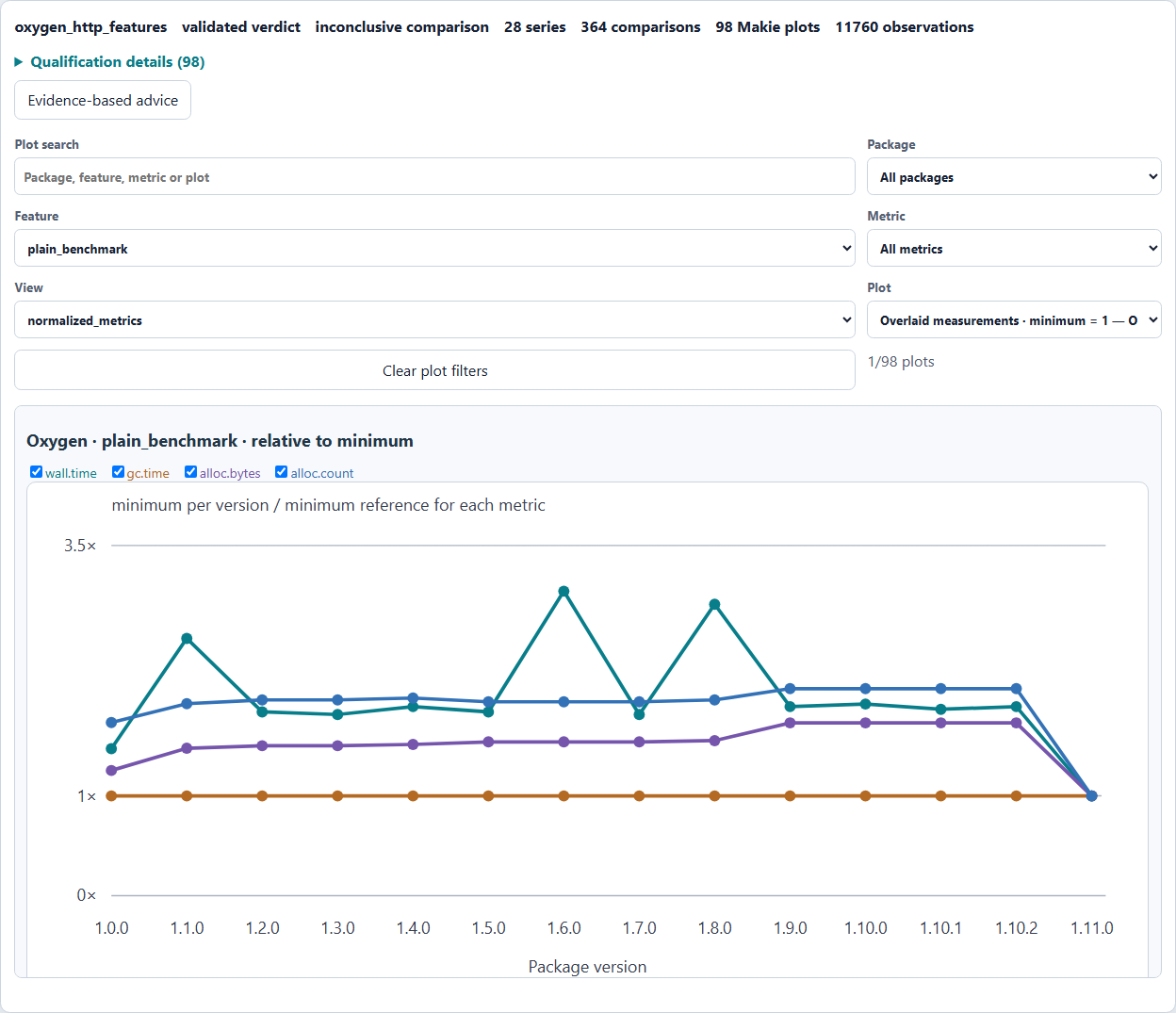
Here, Oxygen hosts the interface that controls measurements of Oxygen in separate workers. The studio itself and the loopback test service have distinct routers and ports.
VS Code
Open examples/kitchen-sink as the workspace and select its root as PerfChecker: Runner Project for native items. Use PerfChecker: Discover existing test items, then run Representative event queue from the Testing view. Its :perf_only tag explains why the ordinary example test command skips it.
For suite comparisons, choose suite.jl or oxygen/suite.jl in the visual suite editor. Set the runner project to the prepared .controller/web directory if you want the Makie and web renderers available as well. Filter workloads, collectors and versions before execution. These are the same suite files used by the command line, not a second editor-only definition.
The VS Code guide covers installation of the preview VSIX, result panels and saved selections. The executable scripts and saved plots here are distinct from a claim that every possible editor interaction has been tested on every operating system.